
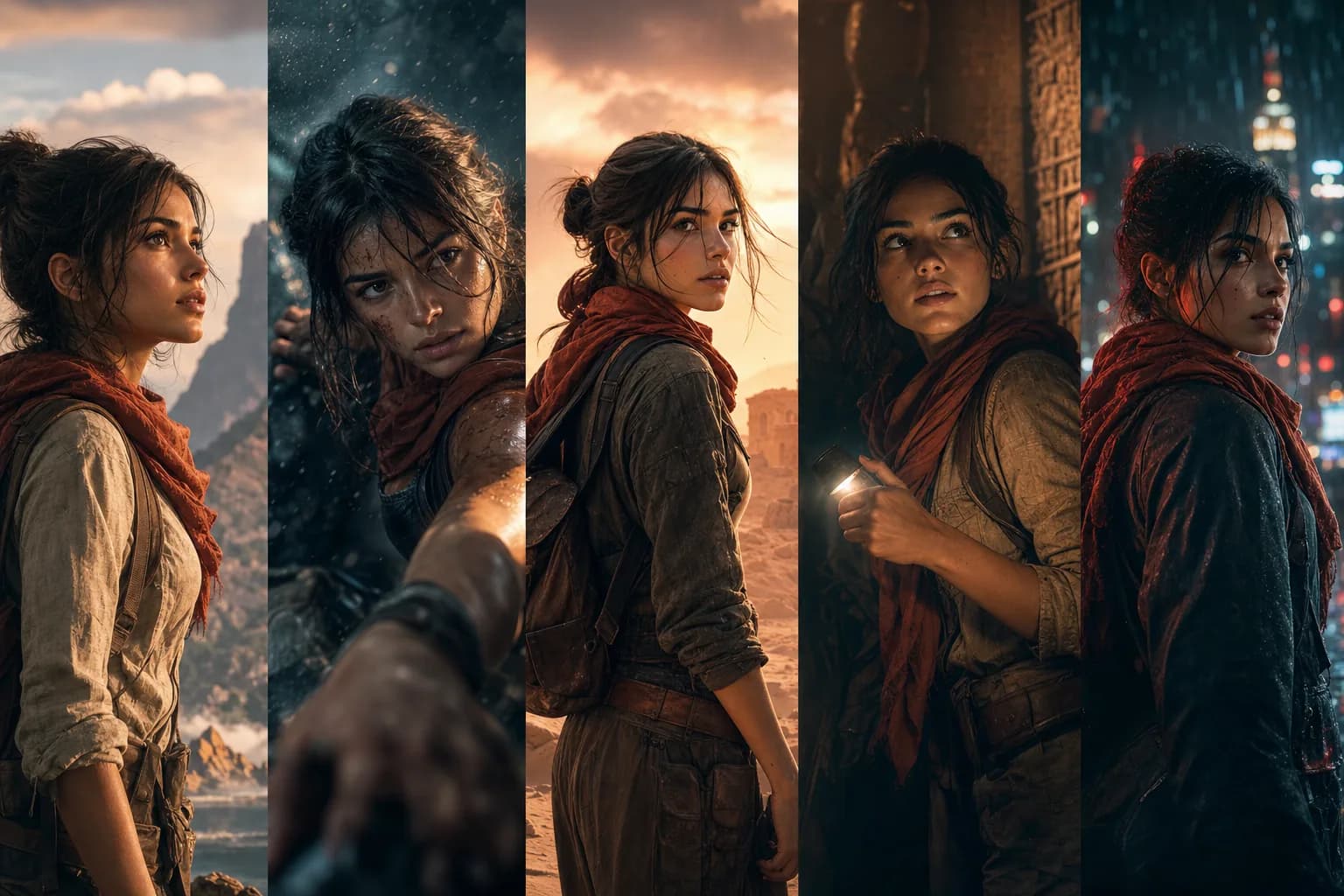
If you have ever tried to tell a story with AI video, you already know the heartbreak. You generate a stunning shot of your hero — the perfect jawline, the right jacket, those expressive eyes — and then you generate the next shot, and suddenly your hero has a different nose, a new haircut, and a jacket that changed color. One-off prompts treat every generation as a brand-new roll of the dice. That is fine for a single hero image, but it is a nightmare for any project with more than one shot.
This guide walks you through how to keep the same character looking like the same character across every shot, scene, and episode — using the dedicated consistency tools inside the Floniks workflow editor. No more lottery. Let's build a character who actually shows up the same way, every time.
Why one-off prompts break your story
A text prompt is a description, not an identity. "A young woman with red hair in a leather jacket" can be rendered ten thousand different ways, and the AI will happily give you a different one each time. The model has no memory of the woman it drew thirty seconds ago.
To get character consistency in AI video, you need to stop describing your character from scratch every shot and instead give the model a fixed reference identity to anchor to. That anchor is what Floniks calls a character passport — a saved identity you can reuse anywhere. Let's set one up.
What you'll be using
Three nodes do the heavy lifting, and they all live on the node-based DAG canvas in the workflow editor:
- characterRegistry — saves a "character passport," a reusable reference identity. You manage saved characters from the CharacterPanel sidebar and drag them onto the canvas to apply them.
- styleLock — locks a scene's visual style (lighting, palette, grading) so the overall look stays consistent across a set of shots.
- consistencyEval — automatically scores how visually consistent your frames are on a 0–100 scale using perceptual hashing, so you can catch drift before you publish.
Now let's put them to work.
Step-by-step: a character who stays consistent
Step 1: Create a clean reference for your character
Everything depends on this first image, so don't rush it. Generate or upload a single, clean reference of your character. The best references are:
- Front-facing — the camera looking straight at the character.
- Well-lit — even, neutral lighting with no harsh shadows hiding features.
- Uncluttered — a simple background so the model focuses on the face and wardrobe, not the scenery.
Think of it like a passport photo. You want one unambiguous, high-quality look at who this person is. If you start from a messy, side-lit, half-obscured image, every downstream shot inherits that ambiguity. You can create this reference over on AI Video or with a quick image generation, then bring it into the editor.
Step 2: Save the character passport via characterRegistry
In the workflow editor, add a characterRegistry node and feed it your clean reference image. Give the character a clear name — something you'll recognize three episodes from now, like "Mara_lead" rather than "character1."
Once saved, your character appears in the CharacterPanel sidebar. This is your roster. Every character you register lives here, ready to be reused. The passport is the whole point: you define the identity once, and from now on you reference it instead of re-describing it.
Step 3: Build your shots and drag the character onto each one
Now build out the shots for your scene. Each video node represents one shot. Here is the move that makes consistency happen: drag your saved character from the CharacterPanel onto each video node. When you do, the character's identity carries over into that shot, so the model anchors to the same face and look instead of inventing a new one.
If your script has many shots, you don't have to lay them out by hand. Use storyboardSplit to break a script into individual shots automatically, then apply your character to each resulting node. This is a huge time-saver for dialogue-heavy scenes.
Step 4: Add styleLock to hold the scene's look
A consistent face isn't enough if the lighting and grading jump around from shot to shot. Add a styleLock node to your scene and lock the visual style early — before you generate a pile of shots. styleLock holds the scene's look (palette, lighting mood, grade) steady across the whole set, so your character doesn't just look the same, your world looks the same too.
A practical habit: lock style at the start of a scene, not after you've already rendered half of it. Locking late means re-rendering everything that came before to match.
Step 5: Generate your shots with a video model
With your character applied and style locked, generate the shots using a video model. Floniks supports models like Seedance 2.0 and Kling O3 Pro for this stage. Run your shots and watch your character show up — same person, scene after scene.
If you want variations of a shot (different camera angle, slightly different action) without losing the identity, route it through batchRender to produce several options at once, all anchored to the same character passport.
Step 6: Run consistencyEval to score and spot drift
Here's where you stop guessing. Add a consistencyEval node to score your frames on that 0–100 scale. Because it uses perceptual hashing, it's measuring actual visual similarity between frames, not vibes. A high score means your shots hang together; a noticeably lower score on a particular shot is your early warning that drift crept in.
This is the difference between catching a wandering character before you publish versus a viewer catching it for you in the comments.
Step 7: Re-render the shots that scored low
When consistencyEval flags a shot, you don't redo the whole scene — just re-render that one. Go back to the offending video node, confirm the character is applied and styleLock is in place, tighten the prompt if needed, and generate again. Re-score it. Repeat until the weak shots come up to the level of the rest. This targeted fix-and-rescore loop is how you reach a polished, consistent sequence without burning hours re-rendering everything.
Bonus: consistency for talking characters and series
A few combinations are worth knowing:
- Consistent talking presenter? Pair your character with OmniHuman v1.5 to drive a talking, lip-synced presence that stays on-model. Great for hosts, explainers, and narrators. There's a full walkthrough in talking avatars.
- Multi-episode series? Re-use the same registered character across episodes. Because the passport is saved in your CharacterPanel, episode 5's lead can be the exact same identity as episode 1's. See from script to screen for the full series workflow.
- New to the canvas? If the node-based editor is unfamiliar, start with inside the workflow editor, then come back here.
A short consistency checklist
Before you hit generate on a real project, run through this:
- Reference image is clean, well-lit, and front-facing.
- Character is saved via characterRegistry and visible in the CharacterPanel.
- Character is dragged onto every video node — not just the first.
- Wardrobe and lighting descriptions stay stable across your prompts.
- styleLock is applied early, before bulk generation.
- consistencyEval is wired in to score the result.
- Low-scoring shots get re-rendered and re-scored.
Keep those seven in place and your character stops being a stranger in every shot. Want a faster start? Browse the preset templates — several are built around consistent multi-shot storytelling, so you can drop your character into a proven structure instead of wiring everything from zero.
Frequently Asked Questions
How do I keep an AI character consistent across shots?
Save a reference identity once using the characterRegistry node, then drag that saved character from the CharacterPanel onto every video node in your workflow. The identity carries over into each shot, so the model anchors to the same face and look instead of generating a new one each time. Add styleLock to hold the scene's visual style, and use consistencyEval to confirm the shots match.
What is character consistency in AI video?
Character consistency means the same character looks like the same person across multiple shots, scenes, or episodes — same face, wardrobe, and overall identity. It's the opposite of what you get from one-off prompts, where every generation produces a slightly different-looking character. Floniks achieves it with a reusable "character passport" rather than re-describing the character each time.
How do I catch character drift before publishing?
Use the consistencyEval node. It scores your frames on a 0–100 scale using perceptual hashing, measuring actual visual similarity rather than relying on your eye alone. When a particular shot scores noticeably lower than the rest, that's your signal that drift crept in — re-render just that shot and re-score it until it matches.
Can I reuse the same character across multiple episodes?
Yes. Once a character is registered, it stays in your CharacterPanel sidebar. You can drag the same saved character onto new workflows for later episodes, so your lead in episode 5 is the exact same identity as episode 1. This is the core advantage of saving a character passport instead of regenerating from a prompt every time.