
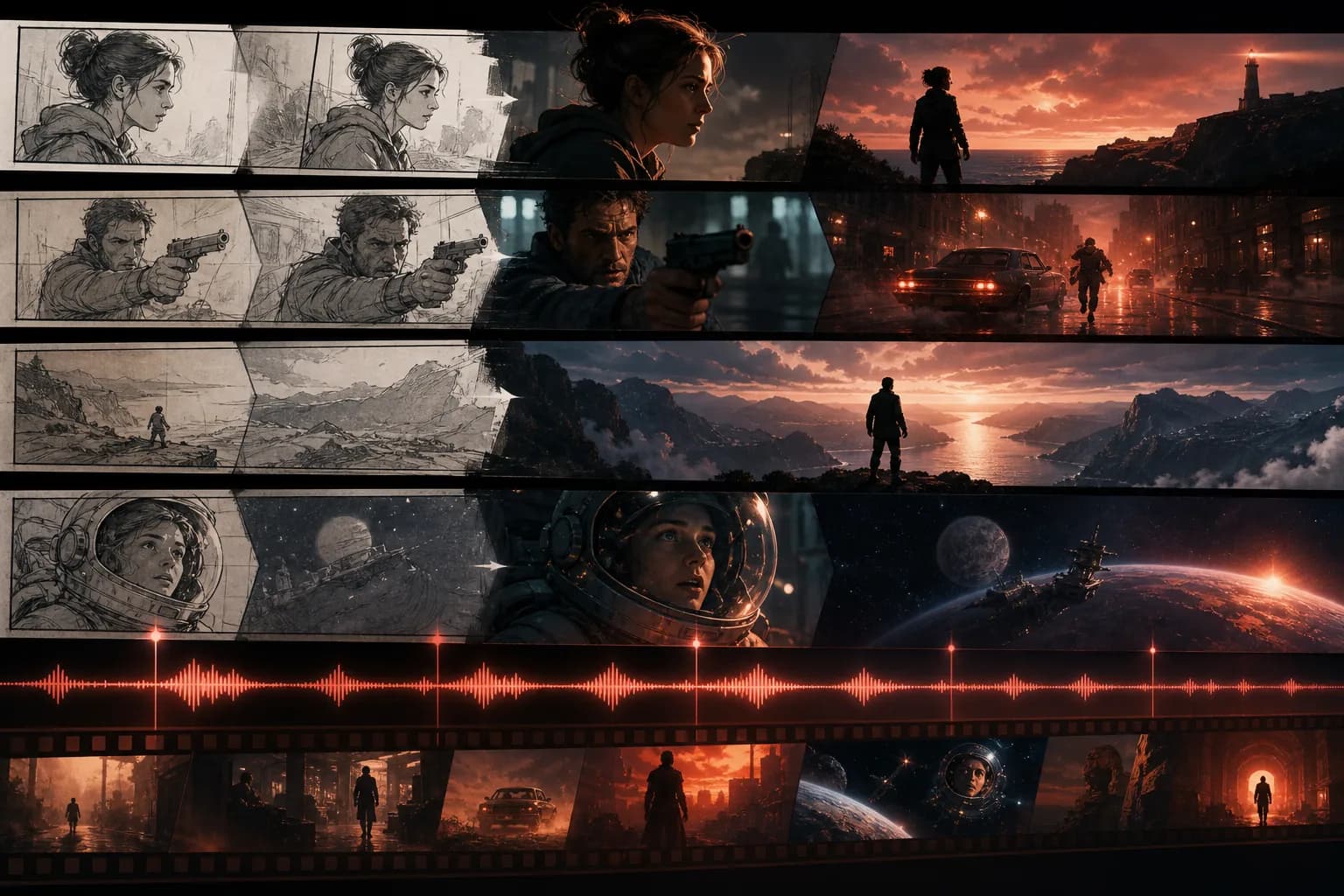
There's a moment every storyteller knows: you have the whole thing in your head — the cold open, the reveal, the music swelling on the final cut — but the distance between that vision and a finished screen feels impossibly wide. Crews, render farms, weeks of compositing. AI doesn't erase craft, but it does collapse that distance. With Floniks, you can go from a written script to a multi-episode animated short, or from a raw track to a beat-synced music video, without leaving a single browser tab.
This is a practical walkthrough, not a hype reel. We'll build two illustrative projects step by step — the kind of thing you could actually start this afternoon — and point out exactly which nodes do the heavy lifting. Let's get into it.
Start Where the Pros Start: A Template
Before you build anything from scratch, know that Floniks ships 16 preset workflow templates across 7 categories — image, video, edit, advanced, e-commerce, music video, and film. Browse them from preset templates, load one into the workflow editor, and customize from there. A film template already wires the storyboard-to-render pipeline; a music video template already chains audio analysis into beat-matched cuts. Loading a template means you spend your energy on creative decisions, not plumbing.
If you've never opened the canvas before, skim Inside the Workflow Editor first — it explains how nodes, edges, and outputs connect. Everything below assumes you're comfortable dragging a node and wiring it to the next.
Project 1 — A Multi-Episode Animated Short
Imagine you're producing a 3-episode sci-fi short. One protagonist, a recurring synthetic companion, and a look that has to stay coherent from episode one's neon alley to episode three's orbital station. This is exactly the workflow AI filmmaking was missing for years, and it's where character consistency AI earns its keep.
From script to storyboard
Start with your script — dialogue, action lines, scene headers, all of it. Drop in the storyboardSplit node and feed it the text. Instead of a wall of prose, you get an editable storyboard table: one row per shot, with columns you can tune for shot description, camera, and prompt. This is your AI storyboard, and it's the single most important artifact in the whole pipeline because every downstream render reads from it.
Edit the table directly. Tighten a shot description, split a long beat into two rows, reorder for pacing. When the board feels right, you can export the storyboard to CSV to share with collaborators or archive a version. Then the storyboardRowPicker node feeds individual rows into video generation — so each shot becomes its own controlled render rather than one chaotic batch.
Locking your character and your look
Here's the part that used to be impossible. Open the CharacterPanel sidebar and save your protagonist as a reusable asset. The characterRegistry node lets you drag that saved character straight onto the canvas, so every shot that references it pulls the same face, wardrobe, and silhouette. Pair it with styleLock to hold the scene's color, grain, and lighting language steady across an entire episode.
Consistency is easy to claim and hard to verify, so Floniks gives you a measuring stick: the consistencyEval node auto-scores how consistent your frames are on a 0–100 scale. If episode two's protagonist drifts to an 71, you know to re-anchor before you render the rest of the act — instead of discovering the problem in the edit bay.
Generating the shots
Now the fun part. Wire your picked rows into strong video models depending on what each shot needs:
- Seedance 2.0 for shots that lean on a reference — it supports reference video and audio plus video extend, so you can grow a clip beyond its initial duration without a hard cut.
- Kling O3 Pro when you need precise first-frame / last-frame control — perfect for choreographed motion where the start and end poses matter (a door opening, a hero turn).
- OmniHuman v1.5 for talking, lip-synced characters — this is your digital human layer, turning a still portrait and a voice line into a performing character.
If you're new to driving a still image into motion, the image-to-video guide breaks down framing, motion prompts, and duration. You can also prototype single shots fast on the AI Video page before committing them to the full workflow.
Variations and collection
Great direction means options. The batchRender node produces multiple variations of a shot in one pass — three takes of the alley reveal, pick the best. Then fileBatchOutput collects everything into one tidy bundle. All of it lands in your Asset Center, backed by Cloudflare R2, so your renders are stored, versioned, and ready to pull into your edit.
Run this loop per episode, reusing the same registered character and locked style, and you've got a coherent multi-episode AI animation instead of three shorts that happen to share a title.
Project 2 — A Beat-Synced Music Video
Now switch hats. You've got a track and a vision, and you want an AI music video where the cuts hit on the beat and the lyrics burn in clean. Pacing is everything here, and Floniks treats the audio as the spine of the whole edit.
Bring in the track
Drop an audioInput node onto the canvas and load your song — or record audio in-browser if you're working with a rough vocal idea or a scratch track. That single node becomes the timing reference for everything that follows.
Analyze the music
This is where beat sync video stops being manual frame-counting:
- audioBeatDetect scans the track and finds the beats, giving you a rhythmic grid to cut against.
- lyricsSync aligns your lyrics to the audio, powered by whisper / wizper ASR, so the words are timestamped to when they're actually sung.
- tempoMatchedCut then cuts your generated shots to that beat grid — quick cuts in the chorus, longer holds in the verse, all locked to the music.
- subtitleOverlay (FAL FFmpeg auto-subtitle) burns the synced lyrics into the frame as a clean, on-beat caption track.
Generate the visuals
Generate your visuals per section — a look for the verse, a heightened palette for the chorus, a comedown for the bridge — then batch-render each section. Because the cuts are driven by the detected beats, dropping fresh footage into a section doesn't break your timing; the grid holds. You direct the mood; the pipeline keeps the rhythm.
Sharing and Growing Your Work
Finishing a piece is only half the story — getting it seen is the other half. When your project is done, publish it to a clean share page with a readable /c/… URL and your author attribution front and center. Your work appears in the Discover feed, where other creators can react, like, and follow you, so a strong short film builds an audience instead of disappearing into a folder.
There's also an "use via API & AI agents" entry on your published workflow. That means another creator — or their AI agent — can run your workflow directly, remixing your storyboard-to-render pipeline for their own project. Your build becomes a tool, not just an artifact.
Tips for Consistency and Pacing
- Register your character before you render anything. Drag it onto the canvas from the CharacterPanel for every shot — don't re-describe it in prompts and hope.
- Watch the consistencyEval score per episode. Re-anchor the moment it dips; drift compounds shot over shot.
- Lock style at the scene level, not the shot level, so a whole sequence shares one visual language.
- Storyboard first, generate second. Editing a CSV row is free; re-rendering a 5-second clip is not.
- Let the beat drive the edit. In music videos, cut to audioBeatDetect's grid rather than eyeballing it — your eye lies, the waveform doesn't.
- Use first/last-frame control for choreography. When the start and end poses matter, Kling O3 Pro saves you a dozen takes.
- Batch variations, then pick. Direct from options instead of accepting your first render.
That's the whole arc — script to storyboard to consistent shots to a published AI short film, and a raw track to a beat-locked music video. None of it requires a render farm or a crew. It requires a vision and a few well-wired nodes. If you also want to polish stills along the way, the AI image editing guide covers inpaint, upscale, and background removal for your key frames.
Now go open a template and start your first episode.
Frequently Asked Questions
How do I keep a character consistent across AI video shots?
Save your protagonist in the CharacterPanel and use the characterRegistry node to drag that same saved character onto the canvas for every shot. Pair it with styleLock to hold the scene's look, and watch the consistencyEval node's 0–100 score per episode — re-anchor whenever it dips so drift doesn't compound across your multi-episode AI animation.
Can I make a beat-synced music video with AI?
Yes. Bring your track in with an audioInput node (or record audio in-browser), run audioBeatDetect to find the beats, align words with lyricsSync (whisper/wizper ASR), then use tempoMatchedCut to cut your generated shots to the beat and subtitleOverlay to burn in synced lyrics. Generate visuals per section and batch-render — the beat grid keeps your timing intact.
Do I have to build the whole workflow from scratch?
No. Floniks ships 16 preset workflow templates across 7 categories, including dedicated film and music video templates. Load one from preset templates into the workflow editor and customize it. Starting from a template means the storyboard-to-render or audio-to-cut plumbing is already wired for you.
How do I share my finished AI short film?
Publish to a clean share page with a readable /c/… URL and your author attribution. Your work lands in the Discover feed where creators can react, like, and follow, and an "use via API & AI agents" entry lets others run your workflow directly — turning your build into a reusable tool, not just a one-off video.