
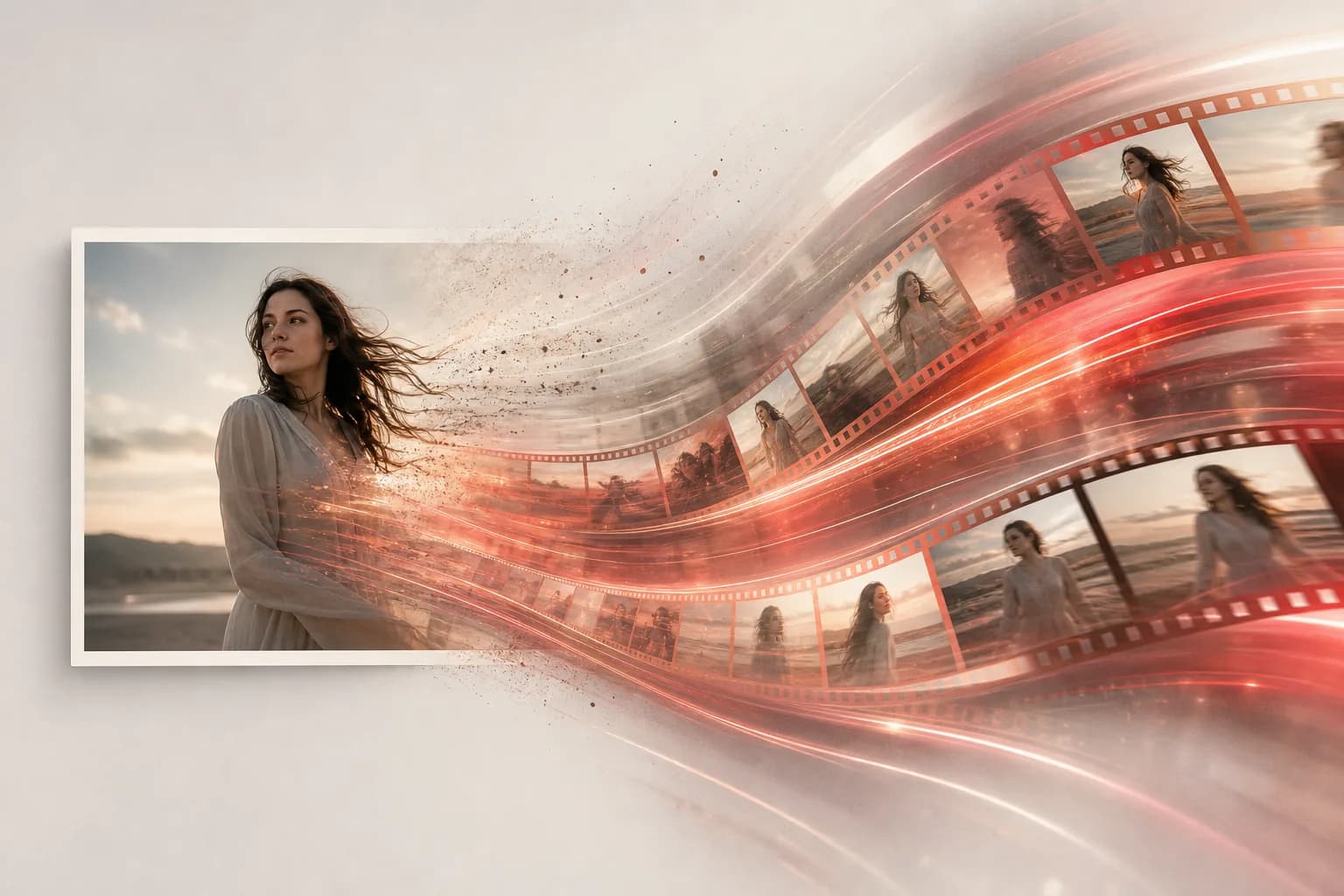
Hi, I'm Sophie from the Floniks creator team — and today we're doing one of my favorite things: bringing a still image to life. If you've ever stared at a great photo and thought "I wish this moved," you're in exactly the right place. In the next few minutes you'll go from a single frame to a finished clip you can download or share.
The best part? You don't need editing software, keyframes, or a render farm. You need a picture (or even just an idea), a model, and a short prompt. Let's animate something.
Two Ways to Make Video on Floniks
Before we dive in, it helps to know there are two doors into video, and you can use whichever fits the moment.
- The Simple page at AI Video — pick a model, upload an image or type a prompt, hit Generate. This is the fast path, and it's where we'll spend most of this guide.
- The workflow editor — a visual canvas where you chain multiple steps together (clean up a photo, animate it, add lip sync, batch out variations). This is the power-user path, and we'll cover a taste of it near the end.
Floniks supports four generation types across both paths: image-to-video, text-to-video, single-image-to-video, and audio-to-video. So whether you have a photo, a sentence, or a voice clip, there's a way in.
Meet the Models (Pick Your Engine)
Different models are good at different things. Here's a quick cheat sheet so you can choose with confidence instead of guessing.
| Model | Best for | Key feature |
|---|---|---|
| Seedance 2.0 | Versatile, controllable clips | Reference video, reference audio, video editing, and video extension |
| Kling O3 Pro | Precise, directed motion | Slotted first-frame / last-frame control plus element references |
| Hailuo | Quick, lively animation | Fast, expressive motion |
| MiniMax | Quick, lively animation | Fast, expressive motion |
| OmniHuman v1.5 | Talking avatars | Audio-driven lip sync |
A simple rule of thumb: reach for Hailuo or MiniMax when you want something fast and full of energy, Kling O3 Pro when you need to control exactly how the shot starts and ends, Seedance 2.0 when you want reference inputs and editing power, and OmniHuman v1.5 whenever a face needs to talk.
Turn a Photo Into a Video: The 5-Minute Walkthrough
Here's the whole flow, start to finish. Open AI Video in one tab and follow along.
-
Open the AI Video page. Head to /ai-video. This is your launchpad for single-step generation — no canvas, no wiring, just the essentials.
-
Upload your source image. Drag in the photo you want to animate, or click to browse. This becomes your first frame, so choose something clean and well-lit. A crisp, uncluttered starting image gives the model the best shot at smooth, believable motion. (If you don't have an image yet, you can skip this and write a text prompt instead — that's text-to-video.)
-
Choose a model. Use the cheat sheet above. For your very first try, I'd suggest Hailuo or MiniMax — they're fast and forgiving, which makes them perfect for learning what your prompt does. Want razor-sharp control of the opening and closing shot? Pick Kling O3 Pro and use its first-frame / last-frame slots.
-
Write a motion prompt. This is where the magic lives. Don't describe the image — describe what moves. Mention the camera and the subject's action. Here's an example you can adapt:
"Slow cinematic push-in toward the subject. Her hair drifts gently in the breeze, she turns her head and smiles. Soft golden-hour light, shallow depth of field."
Notice how it names a camera move (push-in), a subject action (turns and smiles), and a mood (golden hour). That trio is the recipe for good results.
-
Set aspect ratio and duration. Match the aspect ratio to wherever the clip is going — 9:16 for TikTok, Reels, and Shorts; 16:9 for YouTube and landscape; 1:1 for square feeds. Then pick your clip length. Shorter durations render faster and are great for iterating.
-
Hit Generate and watch it work. A placeholder card appears immediately and shows real-time status as the job moves through its stages. You don't have to babysit it or refresh — the status updates live, so you can start setting up your next idea while this one cooks.
-
Find your result. When it's done, your clip lands in your creation history / Asset Center. Every output is stored safely on Cloudflare R2, so it's there waiting for you whenever you come back.
-
Download or share. Grab the file with a download, or share it instantly with a
/c/link — a clean, shareable URL you can drop to a client, a friend, or your team.
That's the entire loop. Upload, choose, prompt, generate, share. Run it once and you'll have the rhythm down.
Level Up in the Workflow Editor
Once the Simple page feels natural, the workflow editor is where things get genuinely fun. Instead of one step, you build a pipeline of connected nodes. A few combinations worth trying:
-
Clean up first, then animate. Chain an image-to-image node to fix blemishes, sharpen, or restyle your still — then feed that polished frame straight into a video node. A better first frame almost always means a better video. (Our AI image editing guide walks through inpainting, upscaling, and background removal.)
-
Add a talking avatar. Connect an audioInput to an OmniHuman v1.5 node to drive lip sync from a voice clip. Suddenly your still portrait is speaking — perfect for explainer intros and avatar hosts.
-
Direct the motion precisely. Use first-frame / last-frame control (great with Kling O3 Pro) to lock exactly where a shot begins and ends, so the camera move lands the way you pictured it.
-
Batch-render variations. Generate several versions in one run and pick the best take, instead of re-prompting one at a time.
If this section sparks ideas, the deep dive lives in Inside the Workflow Editor, and if you're dreaming bigger, see how creators build multi-episode AI stories.
Sophie's Quick Tips
A handful of habits that will instantly improve your results:
- Write motion-focused prompts. Always name a camera move and a subject action. "Beautiful woman" describes a photo; "slow pan as she laughs" describes a video.
- Keep the first frame clean. Crisp, well-lit, uncluttered. The model extends what it sees, so give it something good to work with.
- Match aspect ratio to your platform. Decide where the clip is going before you generate, and set the ratio to fit. It saves you a re-crop later.
- Experiment freely. Failed generations auto-refund your credits, so trying a wild prompt costs you nothing but a couple of minutes. This is the single biggest reason to be bold — go play.
When you're ready to scale up your output, peek at pricing to find the plan that matches how much you create.
Frequently Asked Questions
How do I turn a photo into a video?
Open AI Video, upload your photo as the source image, pick a model (Hailuo or MiniMax are great first choices), write a short motion prompt describing the camera move and subject action, set your aspect ratio and duration, then hit Generate. Your clip appears in your creation history when it's ready.
What's the best AI model for image to video?
It depends on your goal. For fast, expressive motion, use Hailuo or MiniMax. For precise control over how a shot starts and ends, use Kling O3 Pro with first-frame / last-frame slots. For reference inputs, video editing, and extension, use Seedance 2.0. For a talking avatar with lip sync, use OmniHuman v1.5.
Can I make a talking avatar or do lip sync?
Yes. Floniks supports audio-to-video, and OmniHuman v1.5 is built for audio-driven lip sync. In the workflow editor, connect an audioInput node to OmniHuman to make a still portrait speak from a voice clip.
What happens if a generation fails?
If a generation fails, your credits are automatically refunded — so experimenting is genuinely safe. Tweak your prompt, swap models, or adjust the aspect ratio and try again without worrying about waste.
Now go animate something. Pick one photo, write one motion line, and hit Generate. Five minutes from now you'll have a clip that didn't exist before — and that first one is always the most exciting. Have fun out there!