
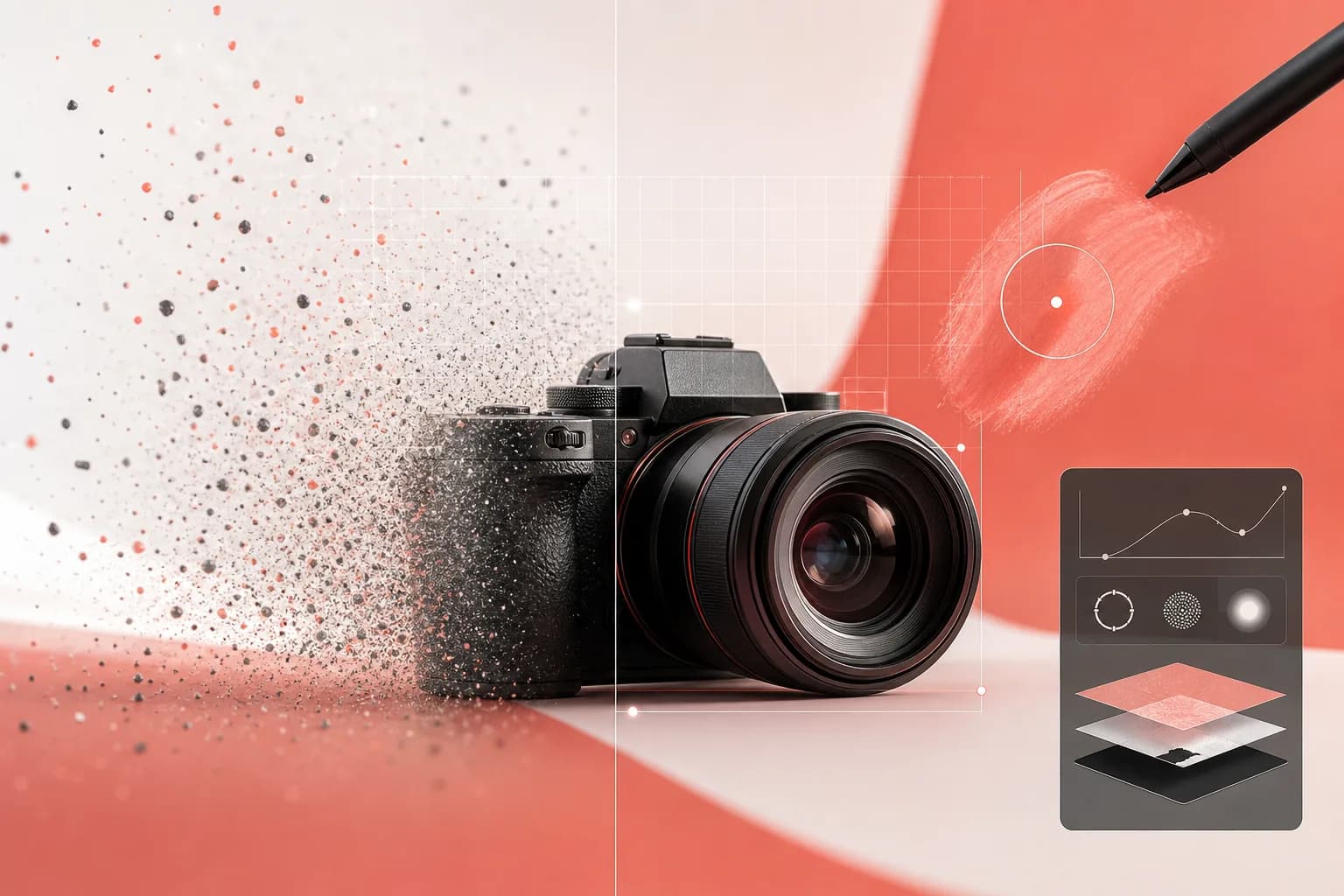
If you shoot products, design layouts, or run an online store, you already know the bottleneck isn't ideas — it's cleanup. Cutting out backgrounds, erasing a stray cable, sharpening a soft shot, relighting a hero image: each of these used to mean a Photoshop session and a steady hand. With Floniks, every one of those tasks is an AI model you can run in a few clicks, and chain together when you need to.
This guide walks you through the four pillars of modern AI image editing — remove background, inpaint, upscale, and relight — using Floniks' two paths: the fast AI Image page for single edits, and the workflow editor for multi-step pipelines and batches. Let's get hands-on.
Two ways to edit: Simple vs. Pro
Floniks gives you two entry points, and picking the right one saves time.
- The Simple page — AI Image. This is image-to-image in one step. Upload a photo, choose what you want to do, generate. Perfect for a quick background removal, a one-off upscale, or a fast relight. No setup, no canvas wrangling.
- The Pro editor — the workflow editor. Here you chain edits into a visual pipeline: remove background → inpaint → upscale → relight, all in one run. It's also where the batch and consistency tools live, so you can process a whole catalog at once. If you've read Inside the Workflow Editor, this is where that power pays off.
A good rule of thumb: if you're touching one image, start Simple. If you're touching twenty — or doing the same three steps repeatedly — go Pro.
The capabilities, and the models behind them
Every edit in Floniks is backed by a real, named model. Here's the map so you always know what's doing the work:
| Task | Model(s) |
|---|---|
| Remove background | fal-ai/imageutils/rembg / BiRefNet |
| Upscale / enhance | Clarity Upscaler / Aura SR |
| Inpaint (remove / replace / fix) | FLUX Pro inpainting / SDXL inpainting |
| Relight / restyle / hero shots | image-to-image |
A few notes on choosing between them:
- rembg vs. BiRefNet. rembg is fast and great for clean-edged products. Reach for BiRefNet when edges are hard — flyaway hair, fur, transparent glass, fine jewelry — because it does high-quality matting that holds those tricky details.
- Clarity Upscaler vs. Aura SR. Both push resolution up. Clarity Upscaler leans into crisp detail recovery; Aura SR is a strong super-resolution choice for clean, high-res output. Try both on a sample and keep the one that flatters your subject.
- FLUX Pro vs. SDXL inpainting. FLUX Pro tends to produce the most coherent fills for AI inpainting; SDXL inpainting is a dependable, flexible alternative, especially when you're replacing an object with something new.
A. Remove a background in /ai-image
This is the fastest win, so let's start here.
- Open AI Image and upload your photo (drag-and-drop works).
- Choose the remove background operation. Behind the scenes this runs rembg or BiRefNet — pick BiRefNet if your subject has hair, fur, or fine edges.
- Generate. In a few moments you get a clean cutout with a transparent background.
- Review the edges. If a hairline or a soft edge looks rough, re-run with BiRefNet for the high-quality matte.
Pro tip: Shoot or source your input against an even, contrasty background when you can. The cleaner the separation between subject and backdrop, the cleaner the cutout — even great remove background AI models do better with good input.
B. Inpaint to remove an unwanted object (mask brush in /editor)
Now the magic trick: erasing something that shouldn't be in the frame — a power cord, a price sticker, a photobomber — with no Photoshop required. This lives in the workflow editor because the inpaint node ships with a built-in Mask brush.
- Open the workflow editor and add an inpaint node (FLUX Pro or SDXL inpainting).
- Load your image into the node.
- Open the Mask brush and paint directly over the object you want gone, right on the canvas. Adjust the brush size for tight or broad areas, use the eraser to trim your mask, and lean on undo/redo to refine without starting over.
- For a clean removal, leave the prompt empty or describe the background that should fill the gap (e.g., "smooth studio backdrop"). To replace the object instead, describe what should appear there.
- Run the node. The model fills the masked region so it blends with the surrounding pixels.
Pro tip: Paint your mask slightly larger than the object, especially around shadows and reflections. Inpainting needs a little breathing room at the edges to blend convincingly — a too-tight mask often leaves a faint ghost.
C. Upscale the result
Once your image is clean, make it sharp and large enough for print, marketplace listings, or a hero banner.
- Add an upscale node (or use the upscale option on AI Image for a single image).
- Choose Clarity Upscaler or Aura SR.
- Run it. The model reconstructs detail and outputs a crisp, high-resolution version.
- Compare against the original at 100%. If textures look over-smoothed, switch models and re-run.
Pro tip: Always upscale last, after background removal and inpainting. Upscaling earlier just means the later steps have more pixels to chew through — and any inpainting artifacts get magnified along with everything else. As a pipeline, this is exactly the kind of ordered, repeatable process we talk about in Why AI workflows beat one-off prompts.
D. Batch-process a product catalog with imageBatch + styleLock
This is where e-commerce sellers get their afternoon back. Instead of editing each product photo by hand, you build the pipeline once and run it across the whole set.
- In the workflow editor, drop an imageBatch node. Drag in a whole folder — it loads up to 20 images at once.
- Wire imageBatch into your editing chain: remove background → inpaint (if needed) → relight → upscale.
- Add a styleLock node so every image comes out with a consistent look — same lighting feel, same treatment across the set. This is what makes a catalog feel cohesive rather than cobbled together.
- Use batchRender when you want multiple variations per product (e.g., different background colors or relight directions).
- Collect everything with a fileBatchOutput node so all your finished images land in one tidy place.
- Run the workflow once. The pipeline applies the same standardized treatment to every item.
The payoff for product photo editing: consistent angles, clean backgrounds, and relit hero images across an entire catalog in a single pass — the kind of standardization that's painful to do by hand and trivial to do as a workflow.
Relight and restyle for hero shots
Relighting is pure image-to-image: feed in your product or portrait, describe the lighting or mood you want ("soft window light from the left," "moody studio rim light," "bright clean e-commerce lighting"), and let the model re-render it. It's how you turn a flat catalog photo into a hero image without re-shooting.
Pro tip: Be specific about light direction and quality. "Warm golden-hour light from the upper right with soft shadows" gives the model far more to work with than "nice lighting." Then drop that same relight step into your batch with styleLock so every hero shot matches.
Reliability you don't have to think about
Two things worth knowing while you experiment:
- Failed generations auto-refund credits. If a run doesn't complete, you're not charged for it — so it's safe to try BiRefNet vs. rembg, or Clarity vs. Aura, without worrying about waste. Check pricing for how credits work.
- Outputs save to your Asset Center. Every result is stored on Cloudflare R2 and waiting for you in your Asset Center, so nothing you generate gets lost between sessions.
Once your stills look great, the natural next step is motion — our image-to-video guide shows how to animate a finished hero shot into a short clip.
Frequently Asked Questions
How do I remove a background with AI?
Open AI Image, upload your photo, choose the remove-background operation, and generate. Floniks runs rembg for clean-edged subjects or BiRefNet for high-quality matting on hair, fur, and fine edges. You get a transparent-background cutout in seconds, with no manual masking.
What's the best AI inpainting model on Floniks?
For most object removal and replacement, FLUX Pro inpainting produces the most coherent fills, while SDXL inpainting is a flexible, reliable alternative. Both work with the in-canvas Mask brush in the workflow editor, so you paint the area to fix and the model blends it in — no Photoshop required.
Which AI upscaler should I use?
Floniks offers Clarity Upscaler and Aura SR. Clarity Upscaler emphasizes crisp detail recovery; Aura SR is a strong super-resolution option for clean, high-res output. Run both on a sample image and keep whichever flatters your subject. Always upscale as the last step in your pipeline.
Can I edit a whole product catalog at once?
Yes. In the workflow editor, use an imageBatch node to load up to 20 images (drag a whole folder), chain your edits, and add styleLock for a consistent look. Use batchRender for variations and fileBatchOutput to collect results — standardizing an entire catalog in one pass.