
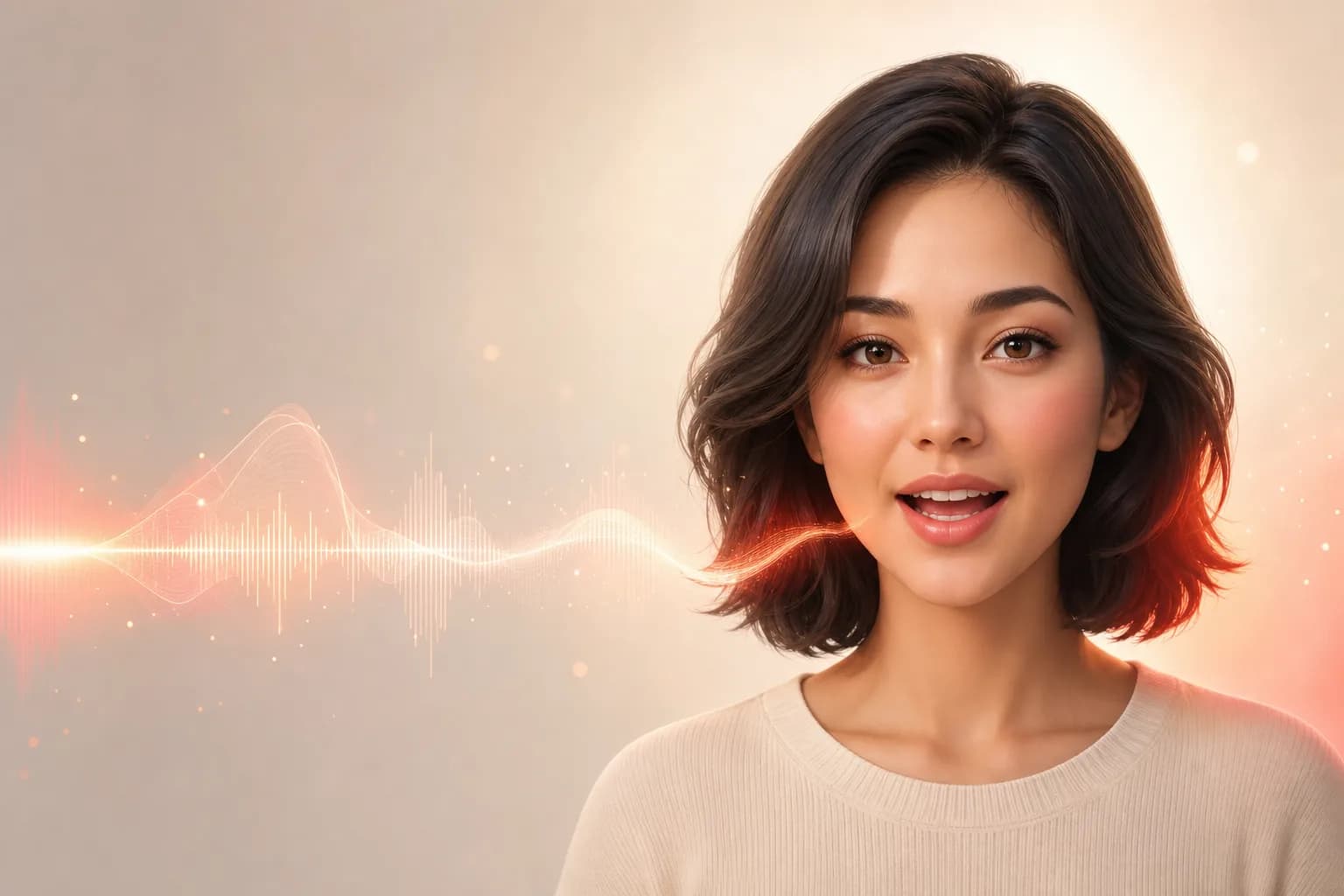
Turn a single photo into a presenter who actually speaks
If you have ever wished you could clone yourself for a video without standing in front of a camera, this is the tutorial for you. A talking avatar (sometimes called a digital human, an AI presenter, or a talking head video) takes a still portrait and an audio track and produces a video of that person speaking, with their mouth and expressions synced to every word.
On Floniks, this is powered by OmniHuman v1.5, an audio-driven lip sync model. You bring two things: a portrait image and a speech audio track. OmniHuman does the rest, animating the face so it looks like the person in the photo is genuinely talking. No green screen, no studio, no re-shoots.
In this guide I'll walk you through making your first talking avatar on the Simple page, then show you how to level it up in the Pro workflow editor. Let's get into it.
What you'll need before you start
You only need two ingredients, but the quality of both directly shapes your result:
- A clean, front-facing portrait. One person, looking toward the camera, with the mouth clearly visible and not obstructed by a hand, microphone, or hair.
- A speech audio track. Clear narration without background music or noise works best.
That's it. If you don't have audio yet, don't worry — Floniks can generate or record it for you, which we'll cover in Step 2.
Step-by-step: your first talking avatar
Step 1 — Prepare a clean front-facing portrait
The portrait is the foundation, so give it a little care. Aim for:
- High resolution and good lighting — soft, even light on the face beats a dark or harshly lit shot every time.
- A front-facing angle — the model animates what it can see, so a straight-on pose gives the most natural mouth movement.
- A visible, unobstructed mouth — anything covering the lips will fight against the lip sync.
A simple headshot or upper-body portrait against a tidy background is ideal. If your only photo is a bit rough, hold that thought — in the Pro section below I'll show you how to clean it up automatically with an image-to-image pass before animating.
Step 2 — Get or record your audio
You have three easy paths to a voice track, so pick whichever fits your workflow:
- Bring your own voiceover. Already recorded narration in another tool, or have a voice actor's file? Upload it directly.
- Generate speech with Text-to-Audio. Type your script and let Floniks synthesize the narration. Great when you don't want to record anything yourself.
- Record in-browser. Using the workflow editor's
audioInputnode, you can capture your voice straight from your microphone — no extra software needed.
If you ever need to turn that audio back into text (for subtitles or review), Floniks Audio-to-Text transcription has you covered.
A note on length: for long scripts, split your narration into shorter segments and generate them separately. Shorter clips sync more reliably and are easier to re-do if one section isn't perfect. You can stitch the segments together afterward.
Step 3 — Open the AI Video page and choose OmniHuman v1.5
Head to AI Video. This is the Simple page, designed for single-step generations — exactly what a talking avatar is.
From the model selector, choose the OmniHuman v1.5 lip-sync model. This tells Floniks you want an audio-driven, image-to-video generation rather than, say, a text-to-video clip. The page will switch to ask for the inputs this mode needs: a portrait and an audio file.
Step 4 — Upload your portrait and audio
Now drop in your two ingredients:
- Upload the portrait image you prepared in Step 1.
- Upload (or generate/record) the audio track from Step 2.
Double-check that the face is clearly the focus of the image and that the audio is the version you actually want — re-doing at this stage costs you nothing but a moment.
Step 5 — Generate and watch the real-time status
Hit generate. Right away you'll see a placeholder card appear in your view — this is your spot reserved while the avatar renders. Floniks shows real-time status so you can watch the task move from submitted to processing to completed without refreshing the page.
Generation is asynchronous, so feel free to start another one or grab a coffee. And here's a reassuring detail: if a generation fails, your credits are automatically refunded. You're never charged for a result you didn't get.
Step 6 — Find your finished video
When the task completes, your talking avatar lands in your creation history and your Asset Center, where finished media is stored on Cloudflare R2. The placeholder card swaps out for the real video. Play it back and check that the lip sync feels natural and the expressions match the tone of your script.
Step 7 — Download or share
From there you can download the video to use anywhere, or share it via a /c link so colleagues or clients can watch without needing an account. That's a full talking avatar, start to finish.
Pro tips for noticeably better results
A few small habits separate a so-so avatar from a convincing one:
- Start with a high-res, well-lit, front-facing portrait. Garbage in, garbage out applies doubly to faces.
- Use clean audio. Background noise and music bleed into the timing and make the mouth movements feel off. Record in a quiet room.
- Keep the mouth visible. No hands near the face, no covering hair, no microphones in frame.
- Split long scripts into segments. Shorter clips sync more reliably and are faster to re-render if you tweak the script.
Level up in the workflow editor
Once you're comfortable with the Simple page, the workflow editor lets you chain the lip-sync step into a full production pipeline. A few of my favorite upgrades:
- Clean up the portrait first. Add an image-to-image node before the lip-sync step to sharpen, relight, or tidy a less-than-perfect photo, then feed the improved portrait straight into OmniHuman v1.5.
- Keep the same presenter across videos. Connect a
characterRegistrynode so your digital human stays consistent from one video to the next — essential for a recurring host or a branded spokesperson. For a deeper dive, see our guide on character consistency. - Add subtitles automatically. Drop in a
subtitleOverlaynode to burn captions onto the final video — perfect for social feeds where most people watch with the sound off.
Because the editor works as a DAG (a connected graph of nodes), you can wire together recording, transcription, image cleanup, lip sync, and subtitles into one repeatable workflow. Build it once, reuse it for every episode.
Where to go next
A talking avatar is one type of image-to-video generation. If you want to broaden your toolkit, our image-to-video guide walks through the wider family of motion generation, and from script to screen shows how to scale a single presenter into a multi-episode series.
When you're ready to produce at volume, check the pricing page to find the plan that fits your output. And remember — failed generations refund automatically, so you can experiment freely while you find your style.
You now have everything you need to turn a single photo into a presenter who speaks. Pick a portrait, write a short script, and make your first one today. The first time you watch your own avatar talk back to you, it genuinely clicks.
Frequently Asked Questions
How do I make an AI talking avatar?
Open AI Video on Floniks, choose the OmniHuman v1.5 lip-sync model, upload a clean front-facing portrait and a speech audio track, then generate. Floniks animates the face so the person appears to speak in sync with the audio, and your finished video lands in your creation history ready to download or share.
What is lip sync AI?
Lip sync AI is technology that matches a person's mouth movements and facial expressions to an audio track. With audio-driven lip sync like OmniHuman v1.5, you provide the voice and a portrait, and the model generates a video where the mouth, jaw, and expressions move naturally in time with every word — no manual animation required.
Where do I get the voice audio for my avatar?
You have three options on Floniks: upload your own recorded voiceover, generate narration from a script with Text-to-Audio, or record straight from your microphone in the workflow editor using an audioInput node. You can also transcribe any audio to text with Audio-to-Text if you need subtitles or a script copy.
What makes a good portrait for a digital human?
Use a high-resolution, well-lit, front-facing photo with one person and an unobstructed, clearly visible mouth. Avoid hands near the face, covering hair, or harsh shadows. If your photo needs work, run an image-to-image cleanup pass in the workflow editor before the lip-sync step.