
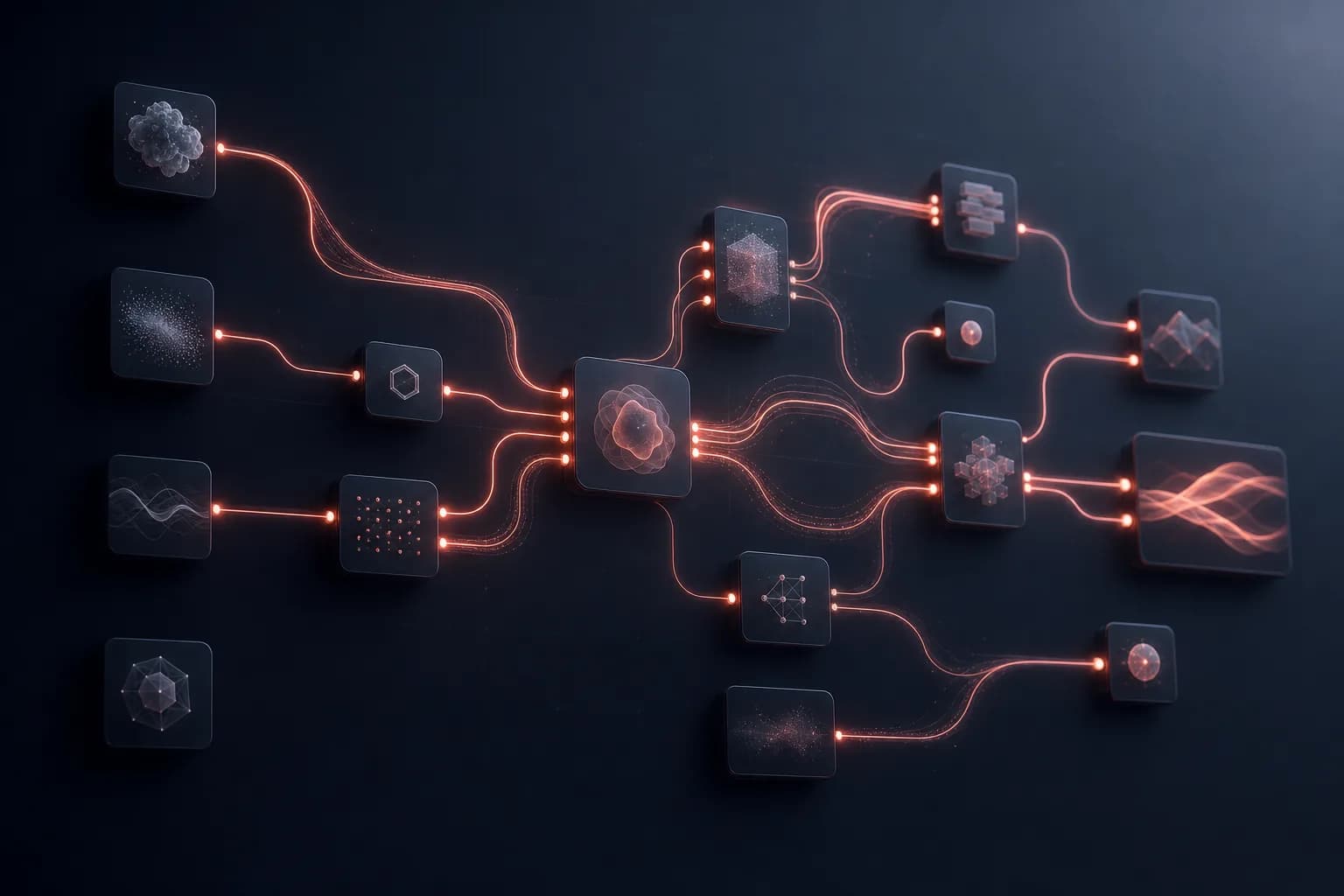
Most AI tools give you one box: type a prompt, get one result, repeat. That's fine until your idea has more than one step. A character that needs to look the same across six shots. A script that should become a storyboard, then images, then video. A batch of twenty variations you want to render and compare side by side. The single-box model breaks down the moment your work becomes a pipeline.
That's the gap the workflow editor at Floniks was built to close. It's a node-based AI pipeline canvas where you drag nodes, wire output ports into input ports, and let Floniks run the whole graph for you — multiple models, in sequence and in parallel, on one surface. This post is a tour of how we think about it, what the nodes actually do, and the engineering we did under the hood to keep a big graph feeling fast.
The canvas is a DAG, not a chat box
Open /editor and you're looking at a directed acyclic graph (DAG) canvas built on XYFlow/ReactFlow. Every node is a unit of work. Every edge is a data dependency. "Acyclic" matters: data flows forward, nothing loops back on itself, and that constraint is exactly what lets us topologically sort the graph and execute nodes the moment their inputs are ready — running independent branches in parallel instead of forcing you into a single line.
You build by dragging. Pull a node onto the canvas, drag from its output port toward another node's input, and the connection snaps into place. We added smart node drag that auto-matches compatible port types, so an image output naturally wants to land on an image input — the canvas nudges you toward connections that will actually run. Right-click anywhere to get an add-node menu without hunting through a sidebar, and the toolbar itself is split into two families: Skill nodes (higher-level, opinionated building blocks) and API nodes (direct access to individual models). You pick the altitude you want to work at.
Anatomy of a node
Three node categories cover most of what you'll build.
Input nodes bring raw material in. imageInput, videoInput, and audioInput accept uploads — but they can also capture directly from your browser: your camera, your screen/video recorder, and your microphone. That means a reference photo, a screen capture, or a voice note becomes a graph input without ever leaving the tab.
AI generation nodes are where models do the work. Each one shows its per-node credit cost right on the card, so you can see what a run will cost before you commit to it. When a node has a long tail of fine-grained settings, we tuck them behind an Advanced toggle (is_advanced) — the common controls stay visible, the deep knobs stay one click away, and the card stays readable.
File Output nodes are where results land. They auto-number themselves — File Output1, File Output2, File Output3 — so a multi-branch graph stays legible at a glance.
When graphs get big, node grouping keeps them sane. Groups are named, colored, semi-transparent regions that drag together as a unit, so you can box up "character setup" or "final render" and move it as one piece. Pair that with a Skill picker for dropping in pre-built capability nodes, and a sprawling pipeline stays organized instead of turning into spaghetti.
Validation before you spend credits
Nothing's worse than waiting on a render only to learn the input was wrong. So we built a unified front-end validation layer that catches problems before a single credit leaves your balance. It checks that a model is actually selected on each AI node, enforces per-node file-count limits (every AI node declares its own max_input_images), and validates media duration so an over-length clip gets flagged up front rather than failing mid-run. The principle is simple: surface the fixable mistake on the canvas, not in the bill.
The nodes that make real pipelines possible
The general node types get you started. The specialized ones are what turn "a few prompts" into a production workflow.
characterRegistrykeeps a character consistent across shots and episodes — register a character once and reuse them so faces don't drift scene to scene. This is the backbone of any multi-episode AI story.styleLockpins a scene's visual style so a sequence holds together instead of wandering between looks.consistencyEvalauto-scores visual consistency from 0 to 100, giving you an objective read on whether a batch actually hangs together — no more squinting at thumbnails.batchRenderrenders many variations in one pass, andimageBatchtakes up to 20 images in, feedingfileBatchOutputfor bulk results. Generate, score, pick — at scale.multimodalToVideoaggregates image, video, audio, and text references into one generation, addressed with@Elementtags like@Element1, so you can point a model at exactly which reference to draw from. It's the heart of a serious AI video pipeline.storyboardSplitandstoryboardRowPickerturn a script into an editable storyboard table — split the narrative into shots, then pick rows to drive downstream generation.- The Inpaint node ships a built-in mask brush — adjustable brush size, an eraser, full undo/redo — so masking happens on the canvas and you never round-trip to Photoshop. If you mostly want editing, our AI image editing guide goes deeper.
Each of these is a node you wire into the same graph, which is the whole point: character consistency, style lock, storyboard, batch render, and consistency scoring aren't separate apps — they're nodes that compose.
Watching it run
Hit run and the graph comes alive. Live node status, progress, and results stream back over Server-Sent Events (SSE), so you watch each node move from pending to processing to done in real time. The moment you submit, instant placeholder cards drop into your history, so there's never a dead-air gap between "I clicked run" and "something is happening." Results fill in as they arrive.
Keeping a big canvas smooth
A node editor is only pleasant if it stays responsive when the graph gets heavy, and that took deliberate engineering.
The first culprit was state. Our undo/redo and autosave were serializing the entire canvas state on every frame — fine for five nodes, brutal for fifty. We fixed that per-frame full-state serialization so editing a large graph no longer hitches. The second was rendering: the glow on active edges was being painted on the CPU, and with many edges lit at once the canvas would stutter. We moved edge-glow to GPU compositing, which keeps the canvas smooth even with a lot of nodes and live connections.
The everyday wins matter too. You save without a page refresh and run without canvas flicker — small things you'd never list on a feature page, but they're the difference between a tool you tolerate and one you live in.
From canvas to shareable, callable workflows
Every graph you build lands in your My Workflows gallery. From there you can publish a share page with author attribution, and each share includes a "use via API & AI agents" entry — so a workflow you designed visually can be invoked over MCP & API for developers through MCP, REST, or Skills. A pipeline stops being a one-off and becomes infrastructure an agent or app can call.
If you'd rather not start from a blank canvas, browse the preset templates and remix one — open it in the editor, swap models, rewire a branch, and make it yours.
Why a graph beats a prompt
The deeper reason to build on a DAG canvas isn't that it looks impressive. It's that real creative work has structure — dependencies, branches, reuse, evaluation — and a graph is the honest representation of that structure. A prompt box flattens everything into one step. A node-based AI pipeline lets you say what you actually mean: this character feeds these three shots, those shots get style-locked, the batch gets scored, the winners go to a final render. The canvas holds the whole shape of the idea, and Floniks executes it.
That's a multi-model AI workflow you can see, edit, share, and call. Open the workflow editor and wire up your first graph.
Frequently Asked Questions
What is the Floniks workflow editor?
It's a node-based AI pipeline editor at /editor, built on a DAG (directed acyclic graph) canvas. You drag nodes, connect output ports to input ports, and Floniks runs the whole graph — chaining multiple AI models in sequence and in parallel on a single surface.
How do I keep a character looking the same across multiple shots?
Use the characterRegistry node. Register a character once and reuse it across shots and episodes so faces stay consistent. Pair it with styleLock to hold a scene's visual style and consistencyEval to auto-score visual consistency from 0 to 100.
Will I waste credits if I set something up wrong?
The editor runs a unified front-end validation pass before execution — checking model selection, per-node file-count limits (max_input_images), and media duration. Problems surface on the canvas before any credits are spent. Each AI node also shows its credit cost on the card.
Can I run my workflows outside the editor?
Yes. Every workflow lives in your My Workflows gallery and can be published with a share page. Each share includes a "use via API & AI agents" entry, so you can invoke your pipeline over MCP, REST, or Skills — see MCP & API for developers.