
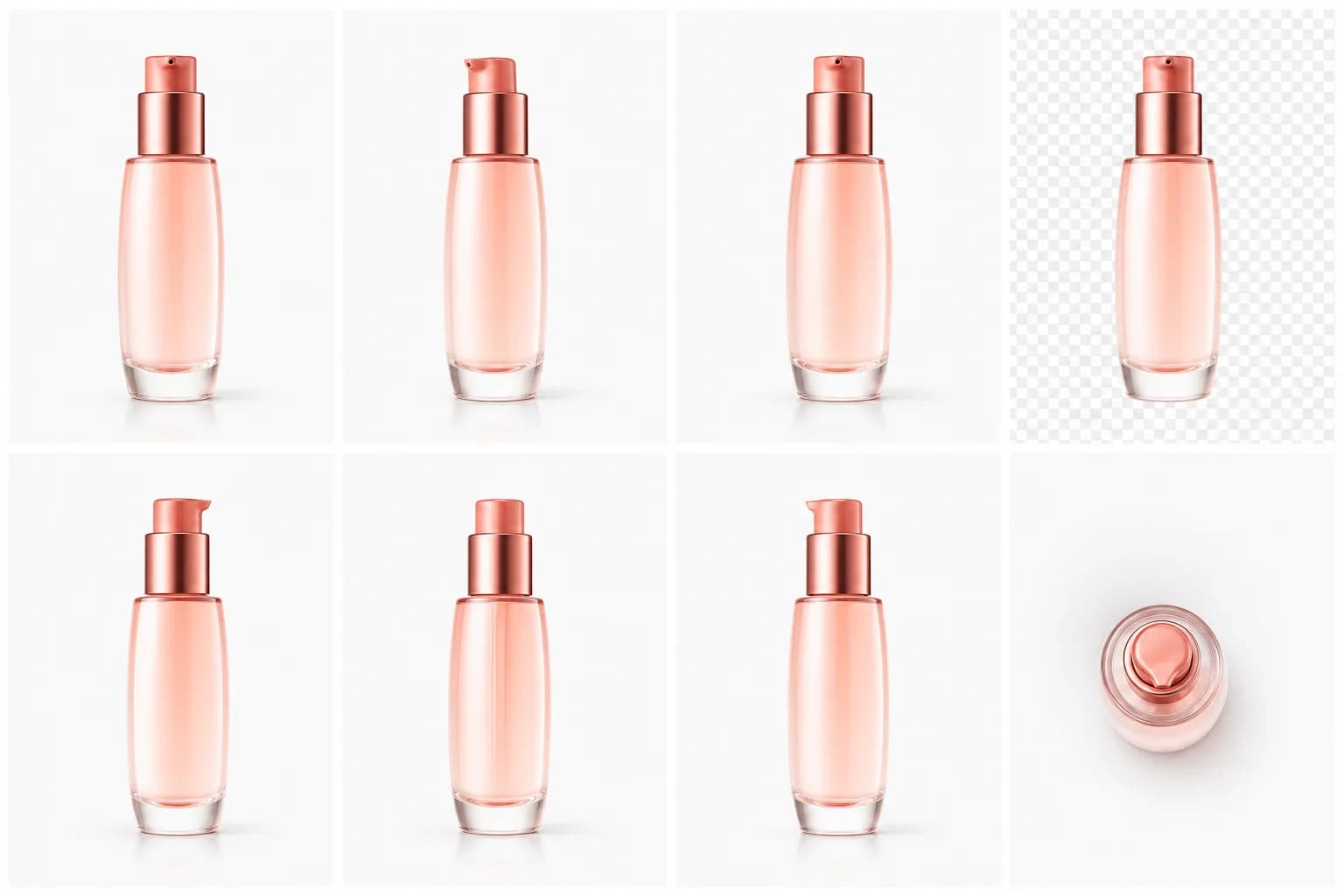
If you sell online, you already know the quiet tax that inconsistent product photos charge you. One shot is brightly lit on a white sweep, the next is dim with a gray cast, a third has a cluttered background from a quick phone snap. Shoppers feel that inconsistency even when they can't name it, and marketplaces like Amazon reward clean, standardized imagery. The good news: you no longer need to reshoot a whole catalog to fix it. With the right AI models and a batch pipeline, you can standardize every product image in a single pass.
This tutorial walks through exactly that. We'll polish one product by hand first to understand the moves, then build a repeatable batch pipeline in the workflow editor that processes a whole folder at once. By the end you'll have clean white backgrounds, relit hero shots, and a consistent look across your entire catalog.
Why standardization matters for ecommerce
Consistent imagery does three things for an online store. It makes your collection pages look professional and trustworthy. It keeps you compliant with marketplace rules (Amazon's main image requires a pure white background, for example). And it removes the visual friction that makes a shopper hesitate.
Doing this manually in Photoshop is slow and, worse, drifts: every image gets a slightly different treatment. AI changes the math. You define the look once, then apply it identically to 20 images at a time. If you want the broader argument for pipelines over one-shot edits, see why workflows beat one-off prompts.
The core edits and the models behind them
Floniks maps each common product-photo task to a purpose-built model. You don't have to memorize these, but it helps to know what's doing the work under the hood.
| Task | Model |
|---|---|
| Remove background | fal-ai/imageutils/rembg (BiRefNet for clean edges) |
| Upscale / enhance | Clarity Upscaler / Aura SR |
| Fix blemish / spot | FLUX Pro inpainting / SDXL inpainting |
| Relight / hero shot | image-to-image |
A few notes on when to reach for each:
- Remove background strips the original scene to a clean cutout.
rembgis fast and reliable; BiRefNet shines on tricky edges like hair, fur, mesh, or transparent packaging. - Upscale rebuilds detail and resolution. Use it when source photos are small or soft, or when you need print-grade hero images.
- Inpaint repairs localized problems: dust, scratches, a stray reflection, a price sticker you forgot to peel off. You paint a mask over the flaw with the in-node mask brush and the model regenerates just that region.
- Relight / restyle uses image-to-image to give a flat catalog shot a styled, hero-quality light setup without a studio.
For a deeper tour of these editing primitives, the AI image editing guide covers each in detail.
Part A: Polish one product by hand
Before automating, do one product manually in AI Image. This builds intuition for the settings you'll reuse in the batch.
- Open AI Image and upload a single product photo.
- Run remove background. Pick
rembgfor a clean, simple product; switch to BiRefNet if the subject has fine or wispy edges. You'll get a transparent cutout you can place on pure white. - Run relight with image-to-image. Describe the look you want in plain language, for example: "soft studio lighting, white seamless background, gentle shadow under the product, e-commerce hero shot." This restyles the lighting without changing the product itself.
- If you spot a flaw, run inpaint: brush a mask over the blemish and let FLUX Pro or SDXL inpainting regenerate that patch.
- Review the result. When you like it, note the exact wording and settings you used. That recipe becomes the template for the whole catalog.
Pro tip: Write your relight prompt as a reusable "style brief." A short, specific brief ("pure white background, top-left key light, soft shadow, no props") produces far more consistent results across a batch than a vague one.
Part B: Build the batch pipeline
Now we scale that single recipe to an entire folder. Head to the workflow editor and assemble these nodes left to right. For a full walkthrough of the canvas and node types, see inside the workflow editor.
- imageBatch — Drop this node first. You can load up to 20 images at once, and you can drag a whole folder onto it instead of uploading files one by one. This is your input bucket.
- remove background — Connect imageBatch into a background-removal node. Choose
rembgor BiRefNet based on the same edge logic from Part A. Every image in the batch gets the identical treatment. - upscale — Connect the cutouts into Clarity Upscaler or Aura SR so every product comes out at consistent, crisp resolution. This is what makes thumbnails and zoom views look sharp.
- styleLock — This is the node that guarantees consistency. styleLock keeps one look locked across the whole set, so image 1 and image 20 share the same lighting and treatment instead of drifting apart. Feed your style brief from Part A here.
- fileBatchOutput — Wire the end of the chain into this collector node. It gathers every processed image into one tidy output set you can download together.
Your pipeline reads: imageBatch → remove background → upscale → styleLock → fileBatchOutput.
Pro tip: If you want more than one look per product, for example a white-background main image plus a styled lifestyle variant, add a batchRender node to produce variations from the same inputs. One run, multiple polished versions per item.
Part C: Run it and collect the results
- With the pipeline wired, click run. The editor processes the batch through each node in order, applying the same operations to every image.
- When the run finishes, open fileBatchOutput to grab the full set in one download.
- Every output is also saved to your Asset Center, hosted on Cloudflare R2, so your processed images stay available even after you close the editor. No need to babysit downloads.
Reliability note: If any single generation fails, its credits are automatically refunded. You only pay for images that actually come out, which matters when you're running 20 at a time. See pricing for how credits work.
Part D: Quick QA with consistencyEval
A batch is only useful if it's actually consistent. Rather than eyeballing 20 images, let the system score it.
- Add a consistencyEval node, or run it against your output set. It auto-scores consistency on a 0–100 scale.
- A high score means your catalog reads as one cohesive set: same background, same lighting logic, same framing feel. A low score flags drift.
- If the score is lower than you'd like, tighten your styleLock brief (more specific lighting and background wording) and re-run. Iterate until the number satisfies you.
Pro tip: Treat consistencyEval as your release gate. Pick a threshold you're happy with and don't publish a batch until it clears that bar. It turns "looks fine to me" into a repeatable standard.
Putting it all together
The payoff is a catalog where every product sits on a clean white background, is relit to a consistent hero standard, and is upscaled to uniform resolution, all produced in a single pipeline run. When you add a new product later, you don't reinvent anything: drop it into the same imageBatch node, run, done. Your store's visual identity stays locked no matter how fast your catalog grows.
Start by doing one product the slow way in AI Image so you trust the moves, then let the workflow editor carry that quality across everything you sell.
Frequently Asked Questions
How do I get a white background for product photos?
Run the remove background model (rembg, or BiRefNet for fine edges) to strip the original scene into a clean cutout, then place it on pure white. Doing this inside a batch pipeline applies the identical treatment to every product, so your whole catalog meets marketplace requirements like Amazon's pure-white main-image rule.
Can AI batch-edit a product catalog?
Yes. In the workflow editor, the imageBatch node loads up to 20 images at once (drag a whole folder), and you chain it through remove-background, upscale, and styleLock nodes before collecting everything with fileBatchOutput. One run standardizes the entire set instead of editing images one at a time.
How do I keep all my product images looking consistent?
Use the styleLock node to lock one look across the batch, then verify with consistencyEval, which auto-scores consistency from 0 to 100. If the score is low, tighten your style brief and re-run. This catches drift before you publish rather than after.
What happens if a generation fails or I lose my files?
Failed generations automatically refund their credits, so you only pay for images that successfully render. All outputs are saved to your Asset Center on Cloudflare R2, so your processed images stay accessible after the run finishes.